
Volume Scroll
Scroll mouse wheel over any video to adjust volume, with customizable overlay, hotkeys, per-site settings, and audio
What it does
Permissions and access
Taken from the extension's own manifest file inside the package. The store listing does not spell this out, so it is worth reading before you install.
| Permission | What it allows |
|---|---|
activeTab | Access the current tab when you click the extension |
storage | Store its own settings and data |
Requests 2 permissions — extensions doing the same job average 3.6.
Technical details
Description
Volume Scroll lets you adjust the volume of any HTML5 video or audio element on the web by simply scrolling your mouse wheel. This eliminates the need to locate the volume slider inside each video player, saving time and clicks. The extension is designed for users who frequently watch videos or listen to audio across different sites and want a consistent, fast way to control loudness without interrupting their workflow.
Features
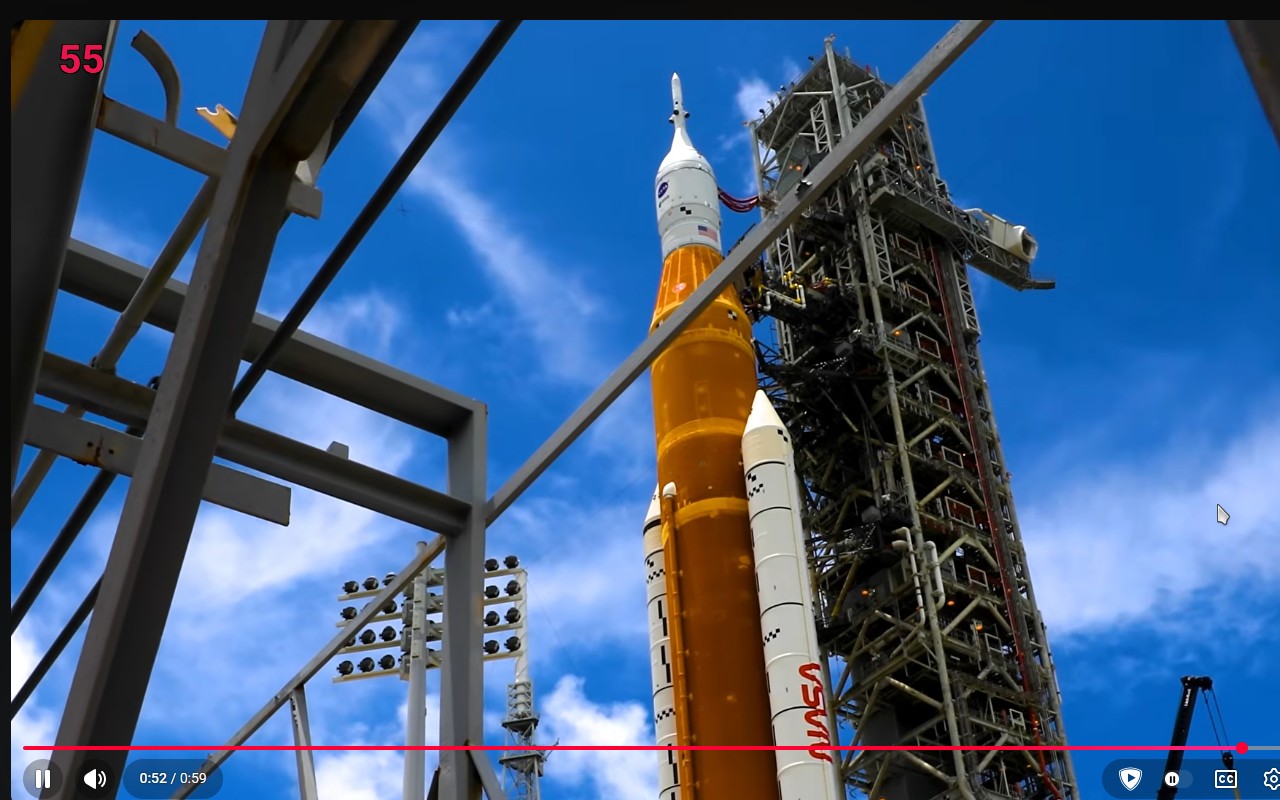
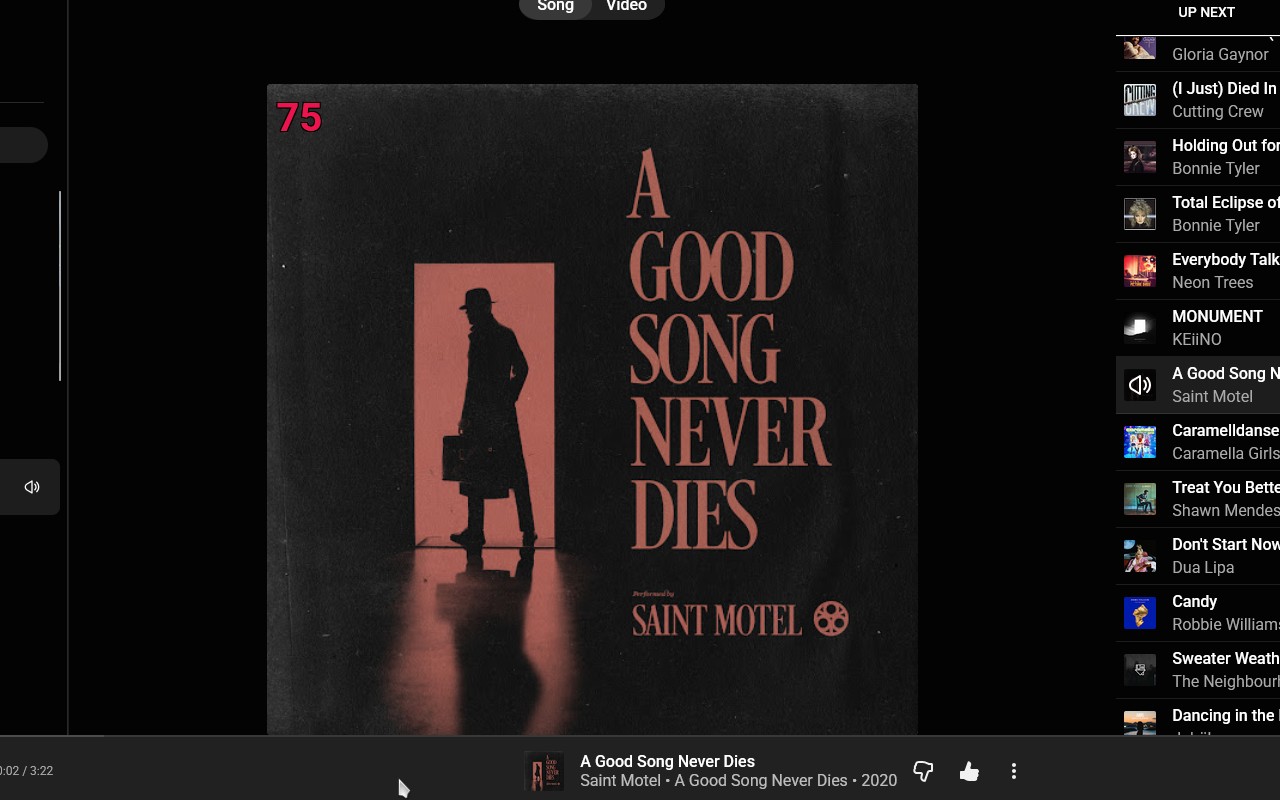
- Scroll to change volume: Hover over any video or audio element and scroll up to increase volume, down to decrease. The volume changes in real time, and a visual overlay shows the current level.
- Precise scroll at low volumes: When volume is below a certain threshold, scrolling adjusts in finer steps, giving you more control over quiet audio. This is useful for night listening or balancing soft dialogue.
- Modifier key toggle: Hold down a custom key (e.g., Ctrl, Shift, Alt) to temporarily enable or disable the scroll function. This prevents accidental volume changes while scrolling on the page for other reasons.
- Rounding to nearest increment: Optionally snap volume to the nearest 5% or 10% step, making it easier to set common levels like 50% or 80% without fine-tuning.
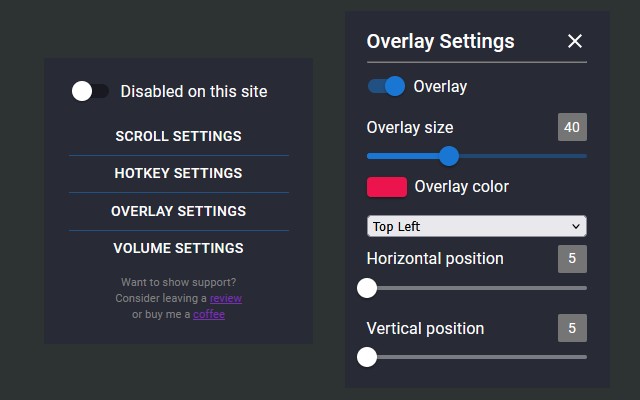
- On-screen volume display: A customizable overlay shows the current volume percentage. You can position it next to your mouse cursor, choose from four preset locations (top-left, top-right, bottom-left, bottom-right), or set custom coordinates. Adjust the overlay's size, display duration, text color, and background opacity to match your preference.
- Hotkeys for mute/unmute: Assign a keyboard shortcut to instantly mute or unmute the active video. Handy when you need to silence audio quickly, for example during a phone call.
- Hotkey for play/pause: Bind a key to toggle playback of the video. Useful for controlling media without switching tabs.
- Hotkey to swap scroll step: Press a key to switch between normal and fine step sizes on the fly, giving you both speed and precision without entering settings.
- Fullscreen only mode: Enable the extension to work only when a video is in fullscreen mode. This avoids interference with normal page scrolling while watching videos in fullscreen.
- Per-site enable/disable: Choose which websites the extension should be active on. For example, you can enable it for YouTube and Netflix but disable it for Google Docs to prevent conflicts.
- Default volume and start muted: Set a default volume level that applies to all videos on a site (or globally). Optionally start videos muted, then unmute with a scroll or hotkey.
- Per-site customization: All settings-including overlay appearance, scroll step size, modifier key, and hotkeys-can be configured individually for each website. This allows you to have different behaviors on YouTube vs. Twitch vs. your local media server.
- Audio boost up to 500%: Increase volume beyond the browser's native maximum (typically 100%). This is useful for quiet videos or low-volume headphones. Boost is applied via the extension's own amplification.
- Settings accessible via scroll: In the extension's popup, you can scroll through options to quickly adjust them without clicking individual controls.
Volume Scroll is open source and available on GitHub. You can contribute code, report bugs, or suggest features. The extension respects your privacy: it does not collect any data, and all settings are stored locally in your browser.
Extensions that do the same job
Matched by what these extensions actually do, not by store category, and sorted so the ones asking for the least access come first.
| Extension | Site access | Permissions | Users | Rating |
|---|---|---|---|---|
| Volume Scroll — this page | All sites | 2 | 1K | 4.5★ |
| BetterTTV | Limited | 2 | 3M | 4.6★ |
| Looper for YouTube | Limited | 1 | 400K | 4.6★ |
| Subtitles for Language Learning (Prime Video) | Limited | 3 | 100K | 3.8★ |
| CocoShot: Screenshot & Screen Recorder | Limited | 4 | 70K | 4.9★ |
| EasySubs - Learn languages by watching films and series | Limited | 3 | 4K | 4.3★ |
| YouTube Fast Fullscreen Toggle | Limited | 0 | 3K | 4.6★ |
Want the same thing with less access? BetterTTV, Looper for YouTube, Subtitles for Language Learning (Prime Video) ask for fewer permissions than this one.
Store data last checked August 14, 2026.