
Environment Marker
Adds a colored label to websites to visually distinguish between environments like dev, staging, and production.
What it does
Permissions and access
Taken from the extension's own manifest file inside the package. The store listing does not spell this out, so it is worth reading before you install.
| Permission | What it allows |
|---|---|
activeTab | Access the current tab when you click the extension |
alarms | Schedule background tasks |
storage | Store its own settings and data |
Requests 3 permissions — extensions doing the same job average 3.0.
Technical details
Show all 11 languages
Description
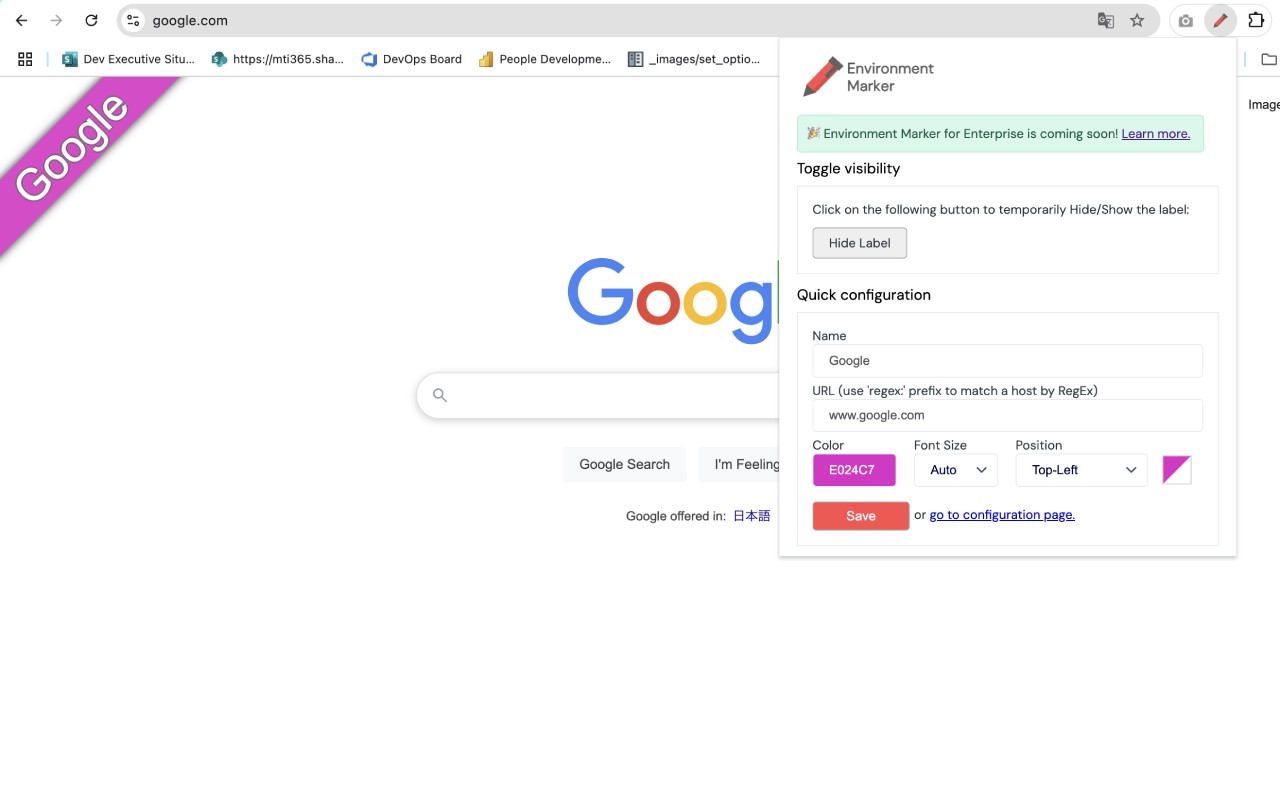
Environment Marker is a Chrome extension that helps developers and IT professionals avoid costly mistakes by visually distinguishing between different environments such as development, staging, QA, and production. These environments often look identical, making it easy to accidentally perform actions in the wrong one. The extension adds a colored label to specified websites based on their URLs, providing an immediate visual cue of which environment you are currently in.
Features
- Customizable labels: Choose label colors using a built-in color picker. This allows you to assign distinct colors to each environment, such as green for development, yellow for staging, and red for production, so you can instantly recognize the environment at a glance.
- Regular expression support: Use regex patterns to match URLs dynamically. This is particularly useful when you have multiple URLs that follow a pattern, such as *.dev.example.com or staging*.example.com. You can define a single rule that matches all relevant URLs without listing each one individually.
- Flexible label positioning: Place the label in any corner of the browser window: top-right, top-left, bottom-right, bottom-left, or on the moldure (the edge of the window). This allows you to choose a position that does not interfere with your workflow or other extensions.
- Quick Config mode: A fast and easy setup option that lets you add environment rules without navigating through multiple menus. This is ideal when you need to quickly mark a new environment on the fly.
- Export & Import settings: Backup your configuration to a file and restore it later. This is essential when switching computers, reinstalling the extension, or sharing your setup with team members. The export feature ensures you do not lose your carefully crafted rules.
To use Environment Marker, after installation go to Chrome Settings > Extensions > Manage Extensions, or click the red pencil icon next to the address bar. Open the Options menu under Environment Marker, configure your environments, and click Save. The extension is open-source and contributions are welcome on GitHub.
Extensions that do the same job
Matched by what these extensions actually do, not by store category, and sorted so the ones asking for the least access come first.
| Extension | Site access | Permissions | Users | Rating |
|---|---|---|---|---|
| Environment Marker — this page | All sites | 3 | 40K | 4.8★ |
| BetterTTV | Limited | 2 | 3M | 4.6★ |
| Bitly | Short links and QR Codes | Limited | 4 | 400K | 3.7★ |
| Markdown Reader | Limited | 2 | 100K | 4.7★ |
| Old Reddit Redirect | Limited | 1 | 100K | 4.7★ |
| Visual CSS Editor | Limited | 4 | 50K | 3.5★ |
| Material Icons for GitHub | Limited | 3 | 30K | 5.0★ |
Want the same thing with less access? BetterTTV, Bitly | Short links and QR Codes, Markdown Reader ask for fewer permissions than this one.
Store data last checked August 14, 2026.