
Better Ruler
A web ruler that snaps to elements for precise measurements, aiding front-end development and UI design.
What it does
Permissions and access
Taken from the extension's own manifest file inside the package. The store listing does not spell this out, so it is worth reading before you install.
| Permission | What it allows |
|---|---|
activeTab | Access the current tab when you click the extension |
scripting | Run its own code on pages |
storage | Store its own settings and data |
Requests 3 permissions — extensions doing the same job average 3.9.
Technical details
Show all 2 languages
Keyboard shortcuts
| Shortcut | Action |
|---|---|
| Alt+Z | Toggle Ruler |
Description
Better Ruler is a Chrome extension that provides a precise on-screen ruler for measuring web page elements. It is designed for front-end developers, UI designers, and anyone who needs to quickly determine the dimensions, positions, or spacing of elements on a webpage. The ruler can snap to element edges, corners, and midpoints, making it easy to get accurate measurements without manual guessing.
Features
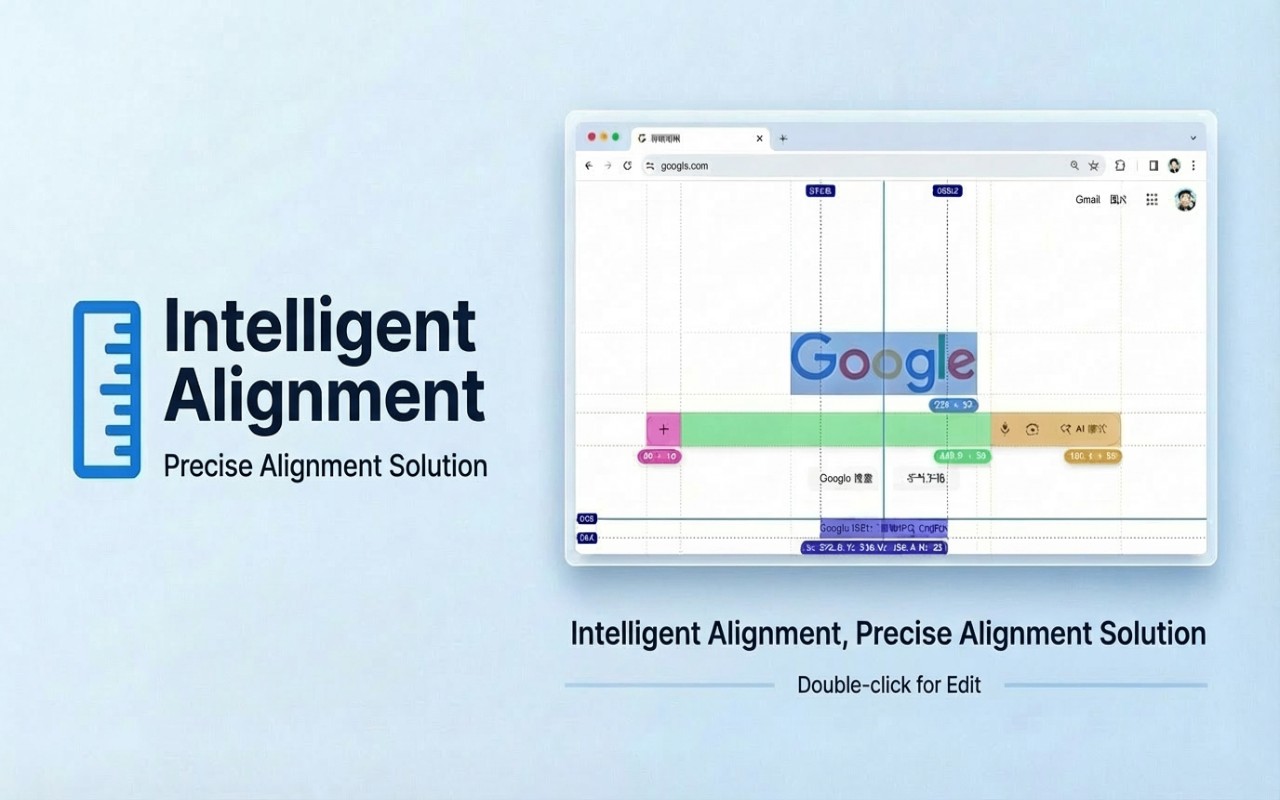
- Smart Snapping: Hold the Alt key (Option on Mac) and move the cursor to automatically snap to nearby element edges, corners (4 corners), and edge midpoints (4 midpoints). The snap preview uses a distinct color to differentiate it from existing measurement boxes. When snapping, the dimensions of the detected element are displayed instantly, helping you verify sizes on the fly.
- Easy Measurement Creation: Click and drag on the page to create a measurement box. As you drag, the box automatically snaps to element edges, ensuring your measurement aligns with the page layout. This is useful for quickly measuring the width of a sidebar or the height of a header.
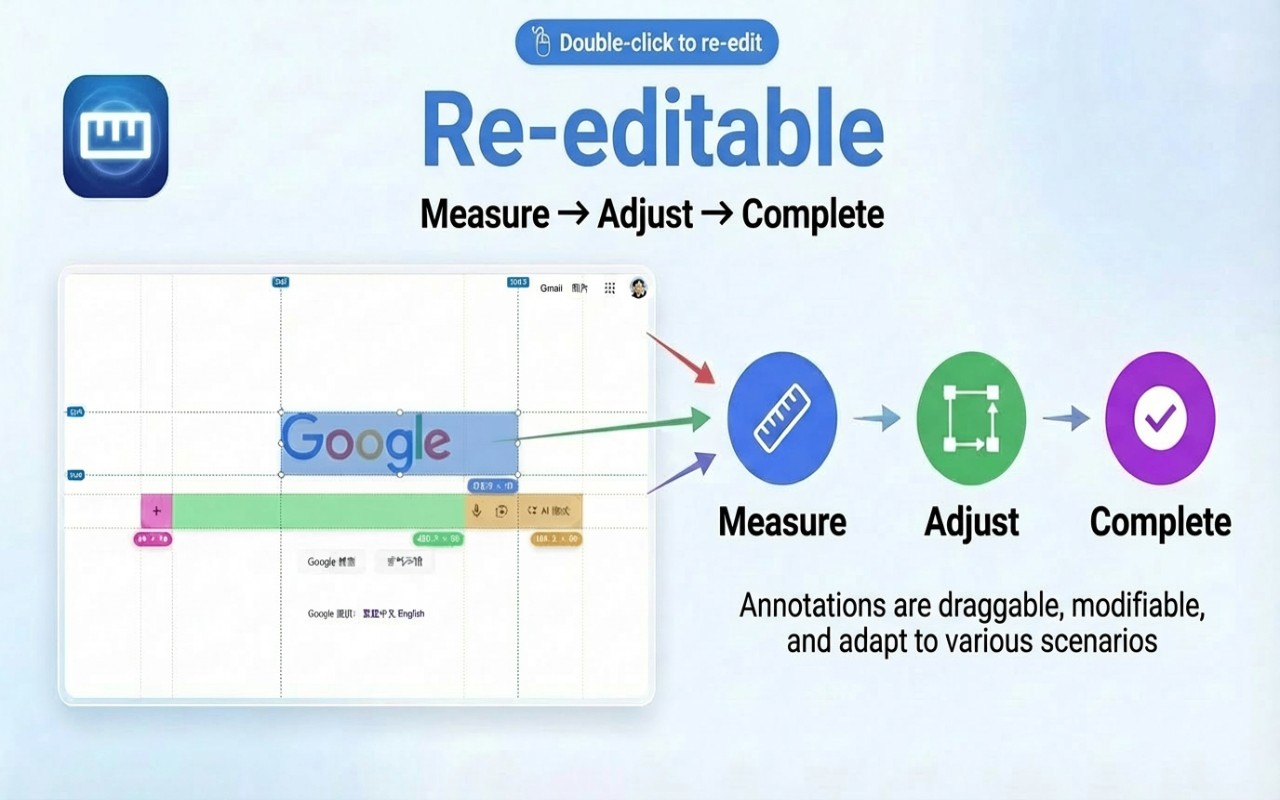
- Flexible Editing: Double-click any measurement box to enter edit mode. Once in edit mode, you can move the box by dragging, resize it by dragging corners or edges, or fine-tune its position using keyboard shortcuts. Press Esc to exit edit mode, or Backspace to delete the selected layer. This allows you to adjust measurements after creation without starting over.
- Status Indicator: The extension icon changes color to indicate whether it is active (colored) or inactive (gray). This provides immediate visual feedback so you know when the ruler is ready to use.
- Shortcuts Help: Hover over the "?" button in the toolbar to view a list of all available keyboard shortcuts. This is helpful for learning the controls without leaving the page.
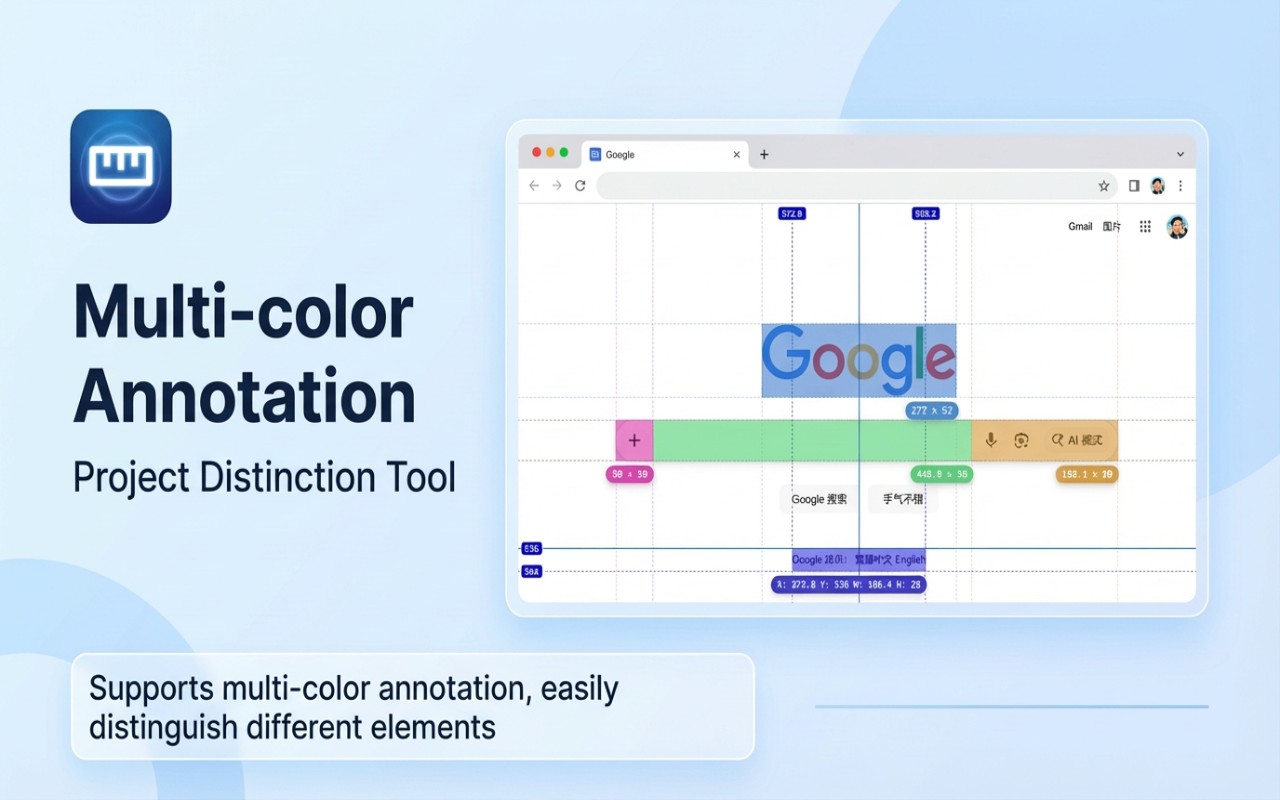
- Customization: Each measurement box can have its own color and opacity, allowing you to distinguish between multiple measurements. When editing a box, changes apply only to that box. If you enable Global Mode, then any color or opacity changes affect all existing boxes simultaneously, which is useful for applying a consistent theme. Single Mode restricts you to one measurement box at a time; creating a new box automatically removes the old one. You can also configure where dimension labels appear (e.g., center, corners), choose between solid or dashed background for boxes, enable automatic horizontal and vertical reference lines with X and Y coordinate labels, and configure the mouse crosshair display mode.
- Quick Controls: Use keyboard shortcuts to toggle features without clicking. Press "f" (configurable) to show or hide the toolbar. Press "r" (configurable) to toggle reference lines on and off. Press "s" (configurable) to toggle snap mode: when snap mode is on, snapping is always active without holding Alt; holding Alt temporarily disables snapping. Press Shift to toggle dimension labels on all boxes. Use Ctrl+Z (Cmd+Z on Mac) to undo operations like draw, delete, move, or resize, and Ctrl+Shift+Z (Cmd+Shift+Z) to redo. The global shortcut Alt+Z (customizable) toggles the extension on and off from any tab. Double-pressing "z" (configurable) quickly activates or deactivates the ruler within the current page after the first launch.
- Copy Dimensions: Click on the dimension label of any measurement box (e.g., "320 x 180") to copy its size to the clipboard. This is handy for pasting dimensions into design specs or code comments.
- Toolbar Hint: After hiding the toolbar, a toast notification appears to remind you how to restore it (e.g., by pressing the configured toggle key). This prevents confusion if you accidentally hide the controls.
- Shadow Color: The snap preview color is independently configurable from the measurement box color, so you can choose a high-contrast color for the snap indicator without affecting your measurement boxes.
- Local File Support: To measure local HTML files, enable "Allow access to file URLs" in the extension settings at chrome://extensions. This allows the ruler to work on pages opened from your local file system.
- Mobile Simulation: The ruler works in Chrome DevTools mobile simulation mode, but ensure that the device type is set to "no touch" to avoid conflicts with touch events.
Better Ruler streamlines the process of measuring web elements by combining automatic snapping with flexible editing and extensive customization. Whether you are checking pixel-perfect alignments, verifying component sizes, or documenting layout dimensions, this extension provides the tools you need without leaving the browser.
Extensions that do the same job
Matched by what these extensions actually do, not by store category, and sorted so the ones asking for the least access come first.
| Extension | Site access | Permissions | Users | Rating |
|---|---|---|---|---|
| Better Ruler — this page | Limited | 3 | 30K | 4.8★ |
| Figma | Limited | 4 | 200K | 4.2★ |
| GitZip for github | Limited | 2 | 100K | 4.1★ |
| IP Address and Domain Information | Limited | 1 | 100K | 4.4★ |
| Lightning Studio | Limited | 3 | 100K | 3.9★ |
| Pixel Measurement | Limited | 3 | 100K | 4.5★ |
| AI Code Finder, Alerts, Ask Questions about Papers: CatalyzeX | Limited | 3 | 50K | 4.8★ |
Store data last checked August 14, 2026.