
Adswerve - dataLayer Inspector+
Inspect and monitor dataLayer, log GA hits, and inject code for testing.
What it does
Permissions and access
Taken from the extension's own manifest file inside the package. The store listing does not spell this out, so it is worth reading before you install.
| Permission | What it allows |
|---|---|
storage | Store its own settings and data |
tabs | See the addresses and titles of your open tabs |
webRequest | Watch your network requests |
windows | windows |
Requests 4 permissions — extensions doing the same job average 3.9.
Technical details
Description
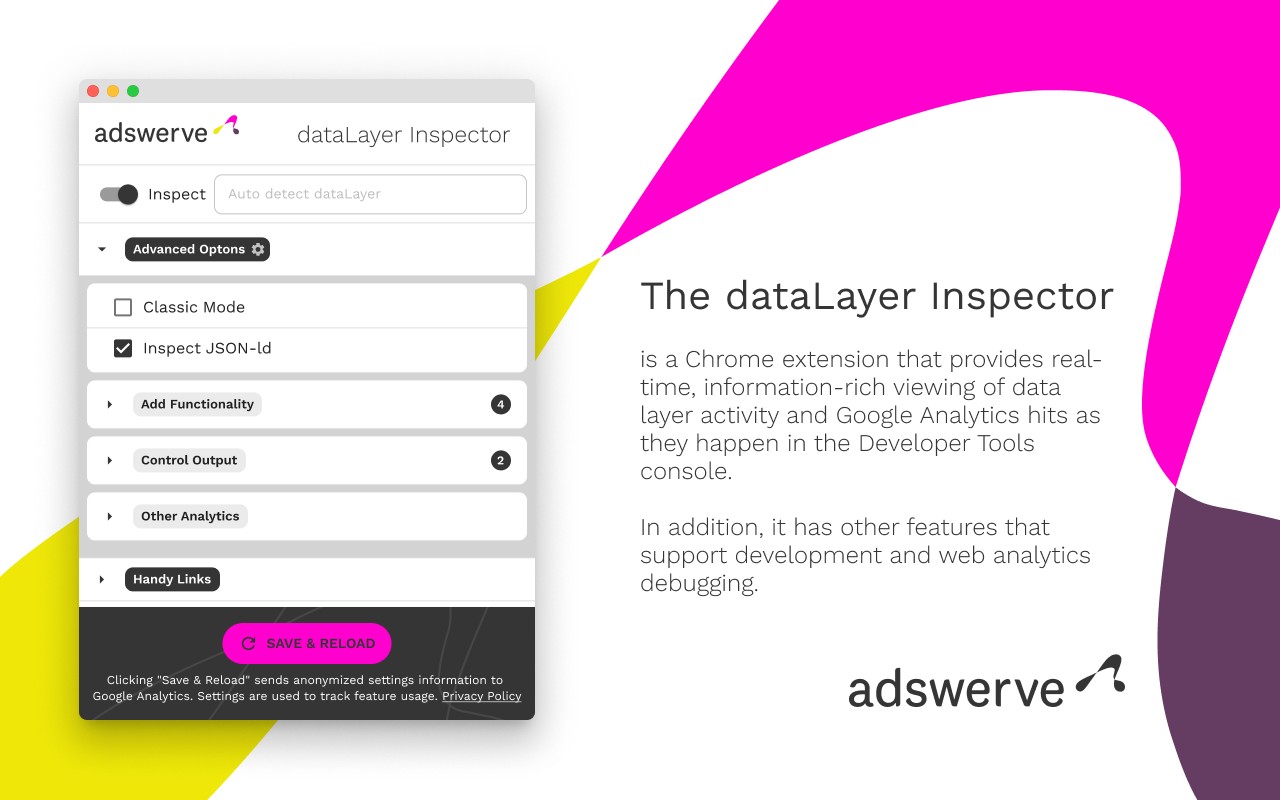
Adswerve dataLayer Inspector+ is a browser extension designed for digital analysts who work with Google Tag Manager and Google Analytics. It provides a suite of utilities to inspect, monitor, and interact with the dataLayer on any web page. The extension is particularly useful for debugging and validating tracking implementations, ensuring that data is correctly pushed and that tags fire as expected.
Features
- Real-time dataLayer monitoring: The extension displays dataLayer pushes in real time, allowing you to see exactly what data is being added to the dataLayer as it happens. This is essential for verifying that your website's code is sending the correct information to Google Analytics or other tags.
- Console logging of Google Analytics hits: It logs every Google Analytics hit to the browser's console, so you can observe when hits are sent, what parameters they contain, and whether they match your expected tracking setup. This is particularly useful when you need to confirm that events or pageviews are firing correctly before or after a launch.
- Evaluation of common dataLayer push formats: The tool helps you understand the structure of typical dataLayer pushes, including those for events and ecommerce. This is beneficial when you're working with a site that uses standard dataLayer schemas and you need to quickly identify whether the pushes are well-formed.
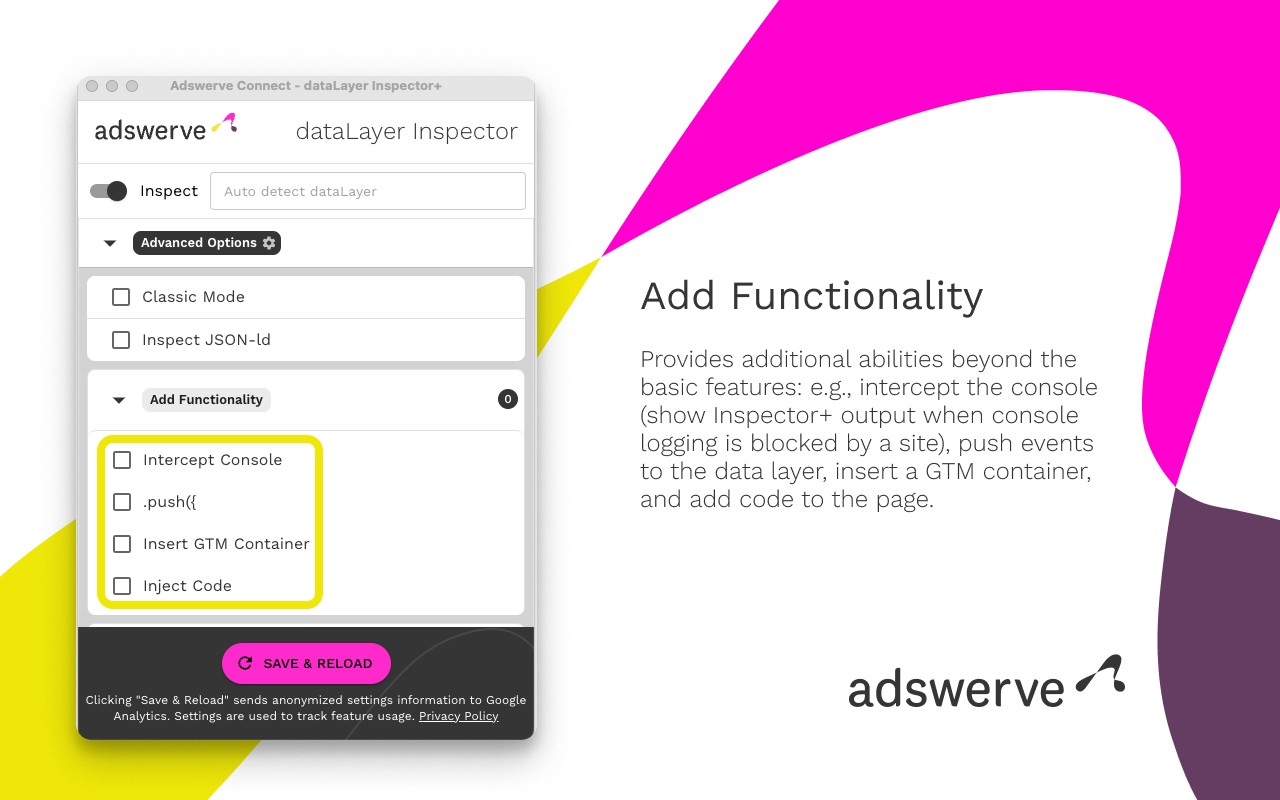
- Inject custom code into the page: You can insert your own JavaScript code into the page to monitor or modify the dataLayer or other page elements. This is handy for testing new tracking logic without having to deploy changes to the live site.
- Push dataLayer messages for setup: The extension allows you to manually push a message to the dataLayer, which can be useful for initializing certain tags or simulating a user interaction to test how your tags respond.
- Add a GTM container for testing: Previously, the extension provided a direct option to insert a Google Tag Manager container. Due to recent Chrome extension restrictions on external script tags, this feature has been removed. However, you can still achieve the same result using the "Inject Code" feature, as described below.
To use the "Inject Code" feature as a replacement for the removed "Insert GTM Container" option, follow these steps: First, go to tagmanager.google.com and, under the Admin tab for your container, select "Install Google Tag Manager." Copy just the snippet code content (the code between the tags, not including those tags). Then, in the DataLayer Inspector popup, under "Add Functionality," check the "Inject Code" option. Paste the copied code snippet into the text box that appears, and click "Save Settings & Reload." The GTM container will be inserted into the page until you uncheck the "Inject Code" box and click "Save Settings & Reload" again. Remember to do this when you have finished testing to avoid leaving the container in place.
Extensions that do the same job
Matched by what these extensions actually do, not by store category, and sorted so the ones asking for the least access come first.
| Extension | Site access | Permissions | Users | Rating |
|---|---|---|---|---|
| Adswerve - dataLayer Inspector+ — this page | All sites | 4 | 90K | 4.1★ |
| Figma | Limited | 4 | 200K | 4.2★ |
| GitZip for github | Limited | 2 | 100K | 4.1★ |
| IP Address and Domain Information | Limited | 1 | 100K | 4.4★ |
| Lightning Studio | Limited | 3 | 100K | 3.9★ |
| Pixel Measurement | Limited | 3 | 100K | 4.5★ |
| AI Code Finder, Alerts, Ask Questions about Papers: CatalyzeX | Limited | 3 | 50K | 4.8★ |
Want the same thing with less access? Figma, GitZip for github, IP Address and Domain Information ask for fewer permissions than this one.
Store data last checked August 14, 2026.